Helpful Technology Guidance
Make better technology decisions before you spend the money.
Technology does not have to be confusing. These articles are designed to help individuals and small businesses understand common computer problems, evaluate their options, and make practical decisions about repair, replacement, upgrades, and new purchases.
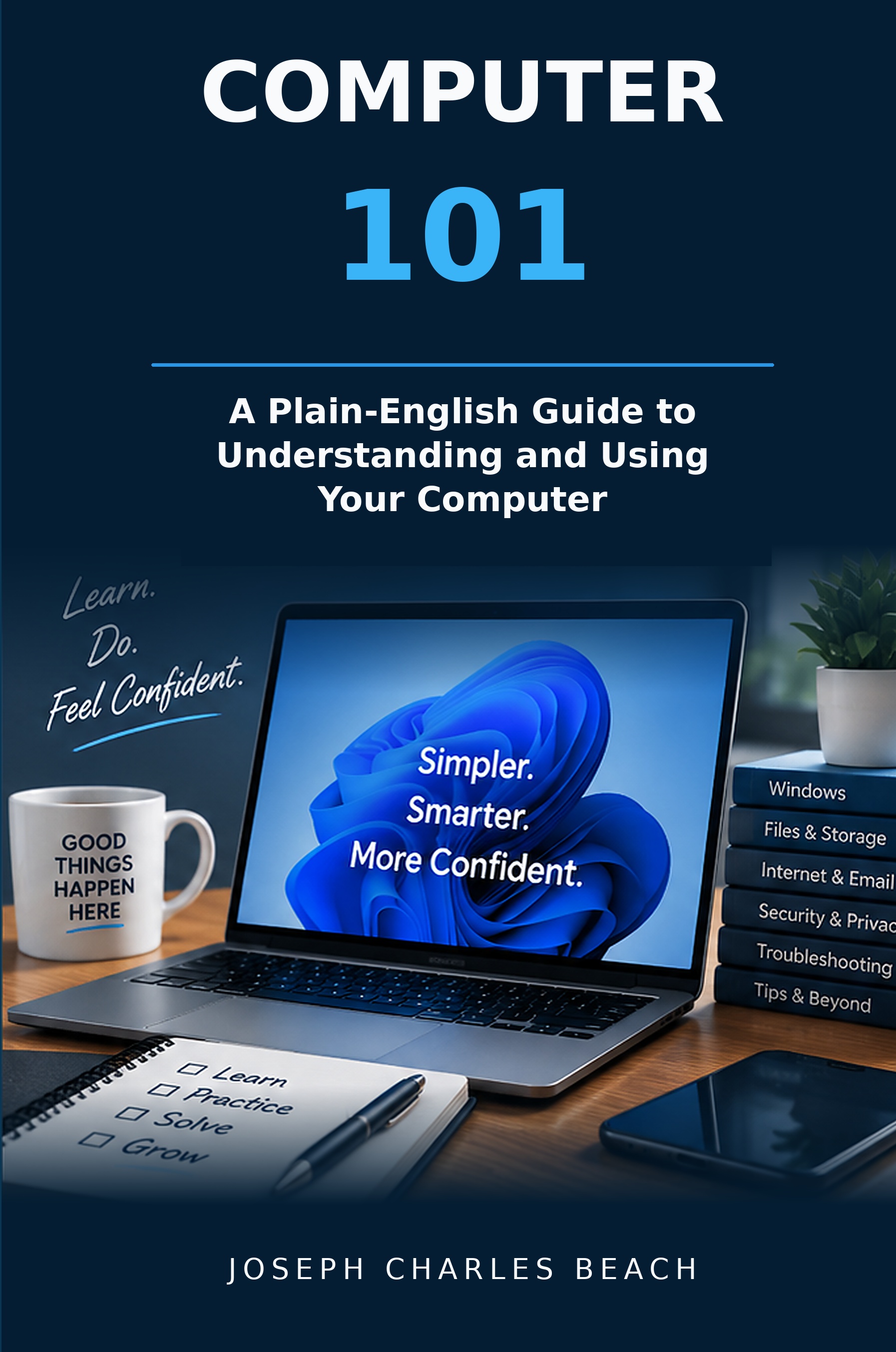
The Complete Computer 101 Book
Computer 101
A Plain-English Guide to Understanding and Using Your Computer
The free Computer 101 lessons on this page grew into a complete, expanded 371-page paperback. The book brings the foundational concepts, troubleshooting methods, security guidance, computer buying advice, migration steps, and Quick Reference material together in one organized resource.
$19.99
6 × 9 paperback · U.S. standard shipping $7.95 · Secure checkout through Square
Computer Buying Guide
What Computer Should I Buy?
Why the specifications matter more than the brand name on the box.
Learn what to look for in a processor, how much RAM makes sense, why SSD storage matters, when to choose a laptop or desktop, and what practical specifications can help a computer remain useful for years.
Read the Buying GuideWhat the guide covers
- Processor choices
- Memory (RAM)
- SSD storage
- Laptop vs. desktop
- Screen size and ports
- Upgradeability
- Common buying mistakes
Five areas worth checking
- Available storage space
- Startup programs
- Memory (RAM)
- Windows, drivers, and software
- Age and condition of the hardware
Repair or Replace?
5 Things to Check Before Replacing a Slow Computer
A slow computer does not automatically mean it is time to buy a new one.
Before replacing an older PC or laptop, it is worth finding out why it is slow. Sometimes a cleanup, repair, memory upgrade, or storage upgrade can extend its useful life. Other times, replacement really is the smarter investment.
Read the Slow Computer GuidePrinter Troubleshooting
Why Did My Printer Suddenly Stop Connecting?
A printer that suddenly shows Offline or refuses to print may not actually be broken.
Printer problems can involve Wi-Fi, the router, Windows, drivers, network addresses, USB connections, or the print queue. This guide explains what to check before replacing a printer that may still have plenty of useful life left.
Read the Printer GuideWhat the guide covers
- Printer status and error messages
- USB vs. wireless connections
- Lost Wi-Fi connections
- Changing IP addresses
- Windows and driver problems
- Stuck print queues
- When restarting can help
Computer 101 — Free Lessons
Understand the computer instead of just clicking until something works.
These free Computer 101 lessons explain foundational computer concepts in plain English. They remain available as standalone resources, while the complete book expands and organizes the material into a single practical reference.
See the Complete Computer 101 BookComputer 101 — Lesson 1
Where Are My Files?
Learn how to think about your computer like a filing cabinet.
Understand the difference between a program and a file, how folders and directory paths work, where downloads go, what File Explorer does, and why knowing where a file is stored is different from knowing which program opens it.
Read Computer 101: Where Are My Files?What this lesson covers
- The filing-cabinet analogy
- Files vs. programs
- Documents and Downloads
- Using File Explorer
- Folder and directory structure
- Desktop and OneDrive
- Meaningful filenames
What this lesson covers
- Programs vs. files
- What Windows does
- Programs, apps, and software
- Installing programs
- Desktop shortcuts
- File extensions
- Closing, deleting, and uninstalling
Computer 101 — Lesson 2
What Is a Program?
Understand the difference between the tool you use and the file you are actually working with.
Learn how programs such as Word, Excel, Chrome, and Photos differ from the documents they open, what Windows does, how file extensions work, what shortcuts really are, and why deleting a file is very different from uninstalling a program.
Read Computer 101: What Is a Program?Computer 101 — Lesson 3
Memory vs. Storage
Learn why RAM and storage are not the same thing—and why both matter.
Understand RAM as the computer's temporary working space, storage as the place where files and programs are kept long term, why SSDs matter, what the processor does, and how to tell whether a computer is running low on memory or storage.
Read Computer 101: Memory vs. StorageWhat this lesson covers
- RAM vs. storage
- The desk-and-filing-cabinet analogy
- What happens when RAM is low
- What happens when storage is full
- SSDs and older hard drives
- The processor's role
- Upgrades and cloud storage
What this lesson covers
- Closing vs. switching
- The Windows taskbar
- Minimize vs. Close
- Alt + Tab
- Browser tabs
- Copy, paste, undo, save, and find
- Everyday Windows keyboard shortcuts
Computer 101 — Lesson 4
Windows, Tabs & Keyboard Shortcuts
You don't have to close something just because you need to look at something else.
Learn how to leave programs and browser tabs open, switch between them efficiently, use the taskbar and Minimize button, reopen an accidentally closed tab, and use practical keyboard shortcuts that can make everyday computer work much easier.
Read Computer 101: Windows, Tabs & Keyboard ShortcutsComputer 101 — Lesson 5
What Does It Mean to Back Up Your Files?
Saving, copying, syncing, and backing up are not the same thing.
Learn what a real backup is, why saving a file is not enough, how external drives and cloud storage can help, why synchronization can also synchronize mistakes, and how to think about protecting files you cannot easily replace.
Read Computer 101: Backing Up Your FilesWhat this lesson covers
- Save vs. backup
- Copying files safely
- External drives
- The 3-2-1 backup idea
- Cloud storage and OneDrive
- Sync vs. backup
- Verifying that files can be restored
What this lesson covers
- Suspicious emails and phishing
- Fake virus and tech-support warnings
- Remote-access scams
- Strong passwords and password managers
- Two-factor authentication
- Windows security and software updates
- What to do after a suspicious click or scam
Computer 101 — Lesson 6
Computer Security Without the Confusion
Stop. Think. Verify.
Learn practical habits that can help protect you from phishing, fake virus warnings, tech-support scams, unsafe downloads, stolen passwords, financial scams, and other common threats without getting buried in technical language.
Read Computer 101: Computer SecurityComputer 101 — Lesson 7
Setting Up a New Computer the Right Way
What to do before you start using a new computer every day.
Learn how to complete Windows setup carefully, run updates, understand accounts and OneDrive, install only the programs you need, transfer and organize files, set up email and printers, configure backups and security, and verify everything before retiring the old computer.
Read Computer 101: Setting Up a New ComputerWhat this lesson covers
- Windows setup and updates
- Microsoft and email accounts
- OneDrive decisions
- Installing needed programs
- Transferring and organizing files
- Email, printers, and devices
- Backups, security, and final verification
What this lesson covers
- Verifying files before erasing the old computer
- Checking backups, OneDrive, browsers, and special programs
- Why deleting files is not enough
- Using Windows Reset appropriately
- Encryption and data protection
- What to do if the old computer no longer works
- Safe recycling, donation, and disposal
Computer 101 — Lesson 8
Preparing an Old Computer for Disposal
Transfer. Verify. Back up. Erase. Then dispose.
Learn how to safely prepare an old computer before selling, donating, recycling, or giving it away, including how to verify your data has moved, protect private information, reset Windows, and handle a computer that no longer works.
Read Computer 101: Preparing an Old Computer for DisposalComputer 101 — Lesson 9
Windows Maintenance Without the Mystery
Maintain the office—do not constantly rearrange it.
Learn simple Windows maintenance habits such as keeping updates current, restarting when appropriate, checking available storage, reviewing startup programs, using Task Manager sensibly, keeping browsers and important software updated, watching for heat and unusual behavior, and knowing when routine maintenance is not enough to solve the real problem.
Read Computer 101: Windows MaintenanceWhat this lesson covers
- Windows Update and restarting
- Storage cleanup and Downloads
- Startup programs and Task Manager
- Browser, software, and driver updates
- Heat, airflow, and warning signs
- Backups and Windows Security
- Why cleaner and optimizer programs are often unnecessary
What this lesson covers
- What cloud storage actually is
- OneDrive, Google Drive, and Dropbox
- Local files versus online-only files
- What synchronization means
- Why sync and backup are not the same thing
- Cloud accounts, security, and sharing
- How to tell where your files really live
Computer 101 — Lesson 10
Cloud Storage Without the Confusion
Is my file on my computer, in the cloud, or both?
Learn how OneDrive and other cloud-storage services work, what synchronization really means, why a file can be local, online, or both, how cloud accounts and sharing work, and why synchronized files are useful without automatically replacing a true backup.
Read Computer 101: Cloud StorageComputer 101 — Lesson 11
Internet & Wi-Fi Without the Mystery
Is the problem my computer, my Wi-Fi, my router, or the internet?
Learn the difference between Wi-Fi and internet access, what routers, modems, fiber equipment, and Ethernet actually do, how signal strength and coverage affect performance, and how to narrow down where a connection problem is really occurring before changing settings or replacing equipment.
Read Computer 101: Internet & Wi-FiWhat this lesson covers
- Wi-Fi versus internet access
- Routers, modems, fiber equipment, and Ethernet
- Wi-Fi signal, distance, and router placement
- Mesh systems and extenders
- ISP outages and equipment restarts
- Speed, upload, latency, and reliability
- A practical troubleshooting map for connection problems
What this lesson covers
- How to describe a problem clearly
- Determining what still works
- Identifying what changed
- Reading and capturing error messages
- Using comparison tests
- Restarting the right thing
- Changing one thing at a time
- Knowing when to stop troubleshooting
Computer 101 — Lesson 12
The First Ten Minutes of Troubleshooting
Observe first. Narrow the problem. Then make one careful change at a time.
Learn a practical troubleshooting process for the first ten minutes of a computer problem: describe exactly what is happening, determine the scope, identify what changed, read the actual error, check the basics, compare what still works, restart safely, and avoid random fixes that can make the original problem harder to understand.
Read Computer 101: The First Ten Minutes of TroubleshootingComputer 101 — Lesson 13
Passwords, Accounts & Two-Factor Authentication
Protect the accounts that protect everything else.
Learn the difference between passwords and Windows PINs, why your primary email account deserves special protection, how password managers and two-factor authentication work, why recovery information matters, and how to avoid common account-access mistakes and scams.
Read Computer 101: Passwords, Accounts & Two-Factor AuthenticationWhat this lesson covers
- Passwords versus Windows PINs
- Microsoft, Google, and email accounts
- Why the email account is especially important
- Password managers and unique passwords
- Two-factor authentication and verification codes
- Recovery email, phone numbers, and backup codes
- Fake security messages and account scams
- What to do when a password is forgotten or compromised
What this lesson covers
- Inventorying files, programs, accounts, and devices
- Creating or verifying a backup before the move
- Transferring Documents, Desktop, Downloads, Pictures, and cloud files
- Reinstalling programs instead of copying Program Files
- Verifying Microsoft, Google, email, and cloud accounts
- Moving browser, email, and specialty application data
- Setting up printers, scanners, and other devices
- Keeping the old computer until the new one is fully verified
Computer 101 — Lesson 14
Moving From an Old Computer to a New Computer
Move your files, accounts, programs, email, and settings without leaving something important behind.
A computer move is more than copying one folder. Learn how to inventory what matters, protect it with a backup, reinstall programs properly, transfer or synchronize files, verify accounts and cloud storage, reconnect devices, test real work, and keep the old computer as a safety net until the migration is truly complete.
Read Computer 101: Moving From an Old Computer to a New ComputerComputer 101 — Lesson 15
Know When to Stop Troubleshooting
When continuing to “fix” the problem can make things worse.
Learn how to recognize when troubleshooting has crossed from helpful into risky: when important data is exposed, storage may be failing, hardware shows signs of danger, a scam or ransomware may be involved, or the next step requires destructive or advanced changes you do not fully understand.
Read Computer 101: Know When to Stop TroubleshootingWhat this lesson covers
- Recognizing when data is at risk
- Warning signs of storage or hardware failure
- When to stop after electrical, battery, or liquid damage
- Ransomware and scam-related stopping points
- Why factory resets and registry edits require caution
- Using a Green, Yellow, Red troubleshooting risk system
- Knowing when repair no longer makes financial sense
- Knowing when the safest next step is to get help
Keep Learning
Fifteen free lessons. One complete Computer 101 resource.
The lessons above are free to read and share. If you want the complete, expanded material in one organized reference—including additional chapters, concise checklists, troubleshooting guidance, and the Computer 101 Quick Reference—the paperback is now available directly from Beach Solutions LLC.
Explore the Computer 101 PaperbackHave a Technology Question?
Need help making sense of a computer problem or purchase?
Beach Solutions LLC provides practical computer help throughout the Mid-Cities. We explain the options clearly so you can make a sound decision without paying for more technology than you need.